


Set a cutover date and preserve the source files
Move when repeated customer entry, inconsistent service prices, or several versions of the same invoice make it hard to know which record is current. Pick the date from which you will create new invoices in FacturaOS. Save an unchanged backup of your workbook and original invoice PDFs before cleaning the working copy. Assign one person to approve the client list, catalog, and outstanding-balance review.
- List the source files and record the date of the backup.
- Count the clients and catalog items you intend to transfer.
- List outstanding invoices by customer, invoice number, due date, currency, total, and confirmed paid amount.
- Keep paid history, drafts, estimates, and active unpaid invoices in separate groups.
Move each source column to a supported client field
Download the bilingual client XLSX template from the client import flow in FacturaOS. Keep its headers unchanged. Use Business or Negocio for a business and Person or Persona for an individual. A business needs a business name; a person needs first and last names. Split names carefully instead of assuming the final word is always a surname. Keep a separate source-to-destination checklist for any column the template cannot preserve.
- Company name → Business Name; individual name → First Name and Last Name; contact person → Contact Name.
- Email and telephone → Email and Phone; check spelling and include the appropriate country code in phone numbers.
- Location → Street Address, City, Region, Postal Code, and Country; preserve leading zeros in postal codes.
- Business tax identifier → Tax ID; operational notes → Internal Notes. Invoice totals and payment history are not client-template fields.
Separate catalog data from invoice history
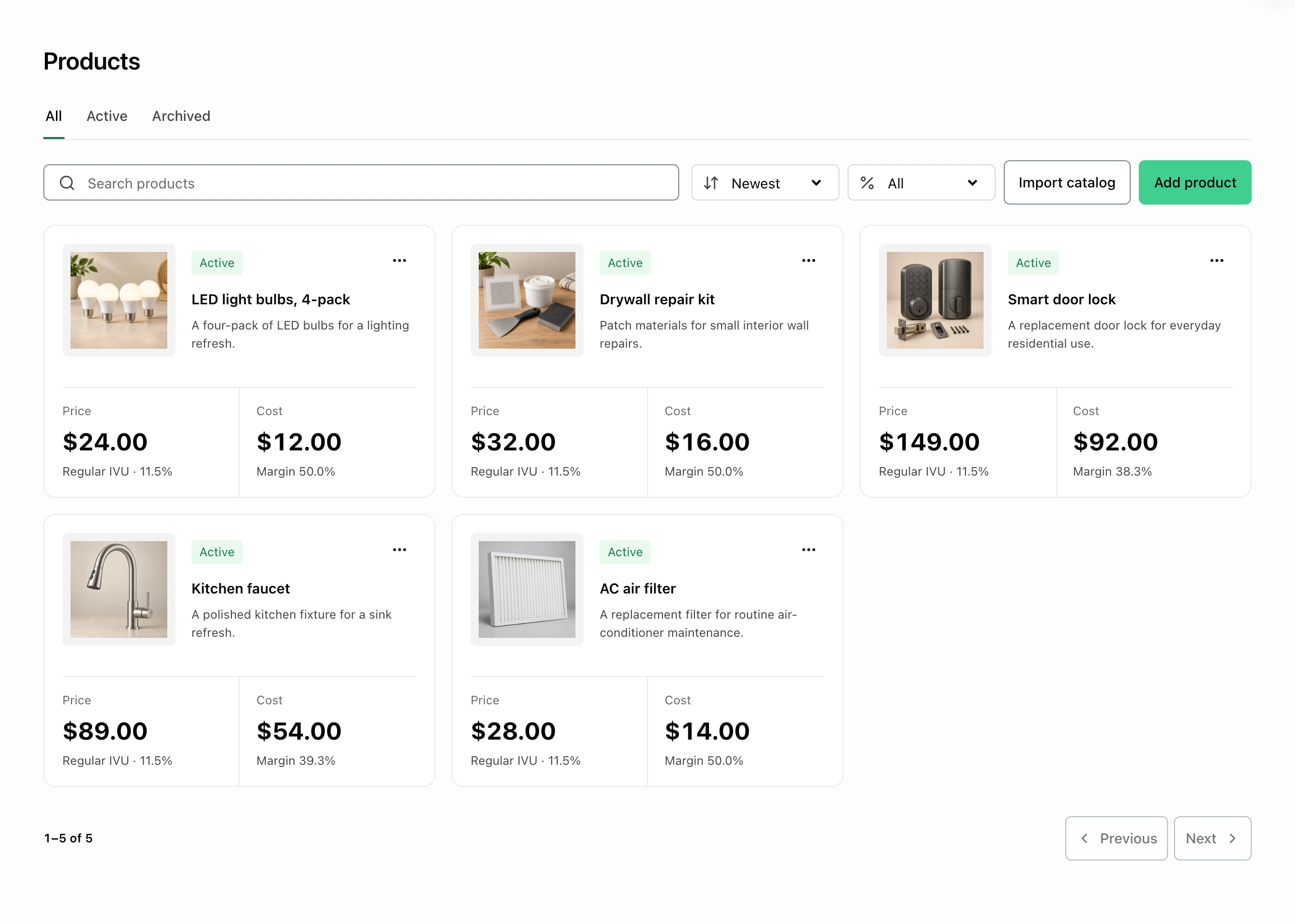
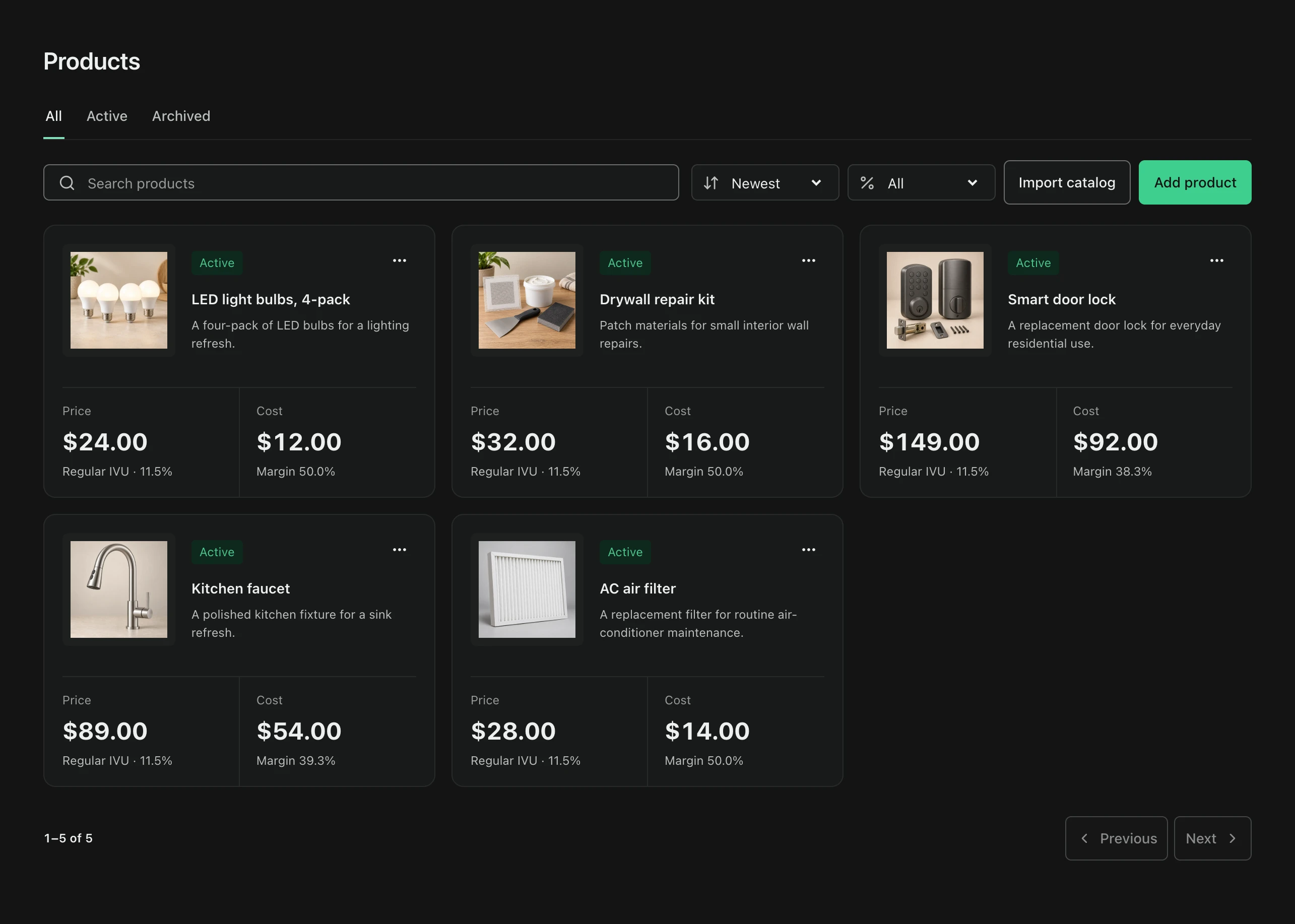
Use the catalog XLSX template for reusable products and services. Choose Product or Producto, or Service or Servicio. Map each item to its name, description, SKU, unit, unit price, unit cost, and tax-rate field where applicable. Check your workspace currency and market configuration before using those amounts. A catalog price describes the next use of an item; it does not recreate the price or tax snapshot on an older invoice.
- Item description → Name and Description; item code → SKU; billing unit → Unit.
- Sale price and internal cost → Unit Price and Unit Cost; use values such as 125.50 without currency symbols or thousands separators.
- A confirmed percentage → Tax Rate (%); verify the appropriate setting for your business rather than copying an old rate automatically.
- Service length → Service Duration in minutes; service scope → Service Includes. Keep service-only values out of product rows.
Use the actual templates and review every flagged row
FacturaOS supports XLSX imports for clients and for catalog products and services, with up to 500 records per file and a 5 MB file limit. An arbitrary CSV or your old invoice workbook is not the supported upload format for these flows. Copy reviewed data into a fresh template, paste values instead of formulas, and keep one record per row. Review the preview and correct invalid rows before importing.
- Keep a local copy of the completed template so you can compare it with the saved records.
- Use the required client names and valid email addresses; review blank or incomplete source rows.
- Check nonnegative prices and costs; service durations use 5–1,440 minutes in 5-minute increments.
- Begin with a few real, reviewed records and confirm the result before continuing with the rest.
Treat a matching field as a review signal
The client import flags matching email addresses or phone numbers, including matches within the file. The catalog import flags matching SKUs or pairs of item type and name. These checks help avoid repeated records, but they do not decide whether two similar names represent the same customer. Shared office phone numbers and shared email addresses also need review. Duplicate rows are skipped rather than used to update an existing record.
- Normalize obvious spacing and spelling differences in the working copy without changing the backup.
- Review shared emails and phones before approving a client list.
- Use consistent item types and SKUs; compare near-identical names yourself.
- Open an existing record to make a deliberate correction instead of expecting an import to merge it.
Keep the historical balance list without issuing the debt twice
The client and catalog importers do not import issued invoices, outstanding balances, or historical payments. Those records need a separate manual review and reconciliation. Keep the original invoice documents and ledger as the reference for work issued before your cutover date. Do not recreate an old invoice as a new bill merely to move its balance into a different system. Use FacturaOS for new invoices from the chosen date, and decide separately how to retain and track earlier work.
- Match each old balance to its original invoice number and customer.
- Calculate the remaining amount from the original total and confirmed payments; keep currencies separate.
- Record the source document and the person who reviewed any difference.
- Keep a clear distinction between historical balances under review and new invoices created after cutover.
Compare counts, records, and money before retiring the working sheet
For each completed import, compare the source rows with the preview categories: ready, duplicate, and invalid. Confirm that the ready rows were saved, then review a sample of client addresses, contact details, item prices, and service settings. Count-only checks are not enough. Separately compare the outstanding balance list with the original invoices and payment records, by currency. Keep the backup accessible after the move.
- Record source row count, ready count, duplicate count, invalid count, and confirmed saved count for each batch.
- Resolve invalid rows before importing; note why a duplicate was skipped.
- Check the first new invoice against the selected customer, catalog values, currency, and agreed terms before sending.
- Confirm that every earlier outstanding balance has a source invoice and a named follow-up owner.