

Documents · Pro + PyME
Give your next document a clear shape.
Build a document, reuse its structure, and keep its recipient and delivery status together.
Plans: Pro and PyME
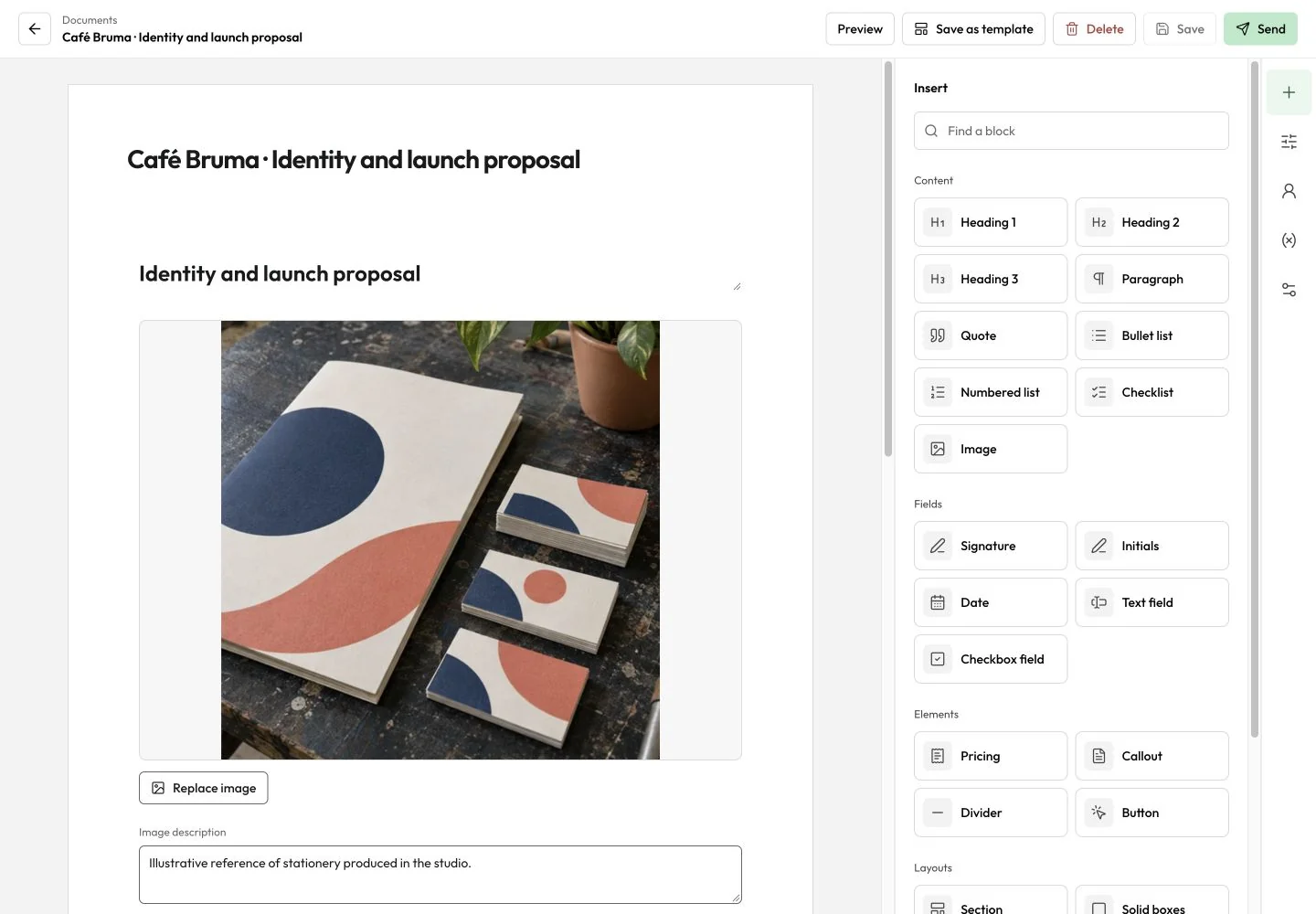
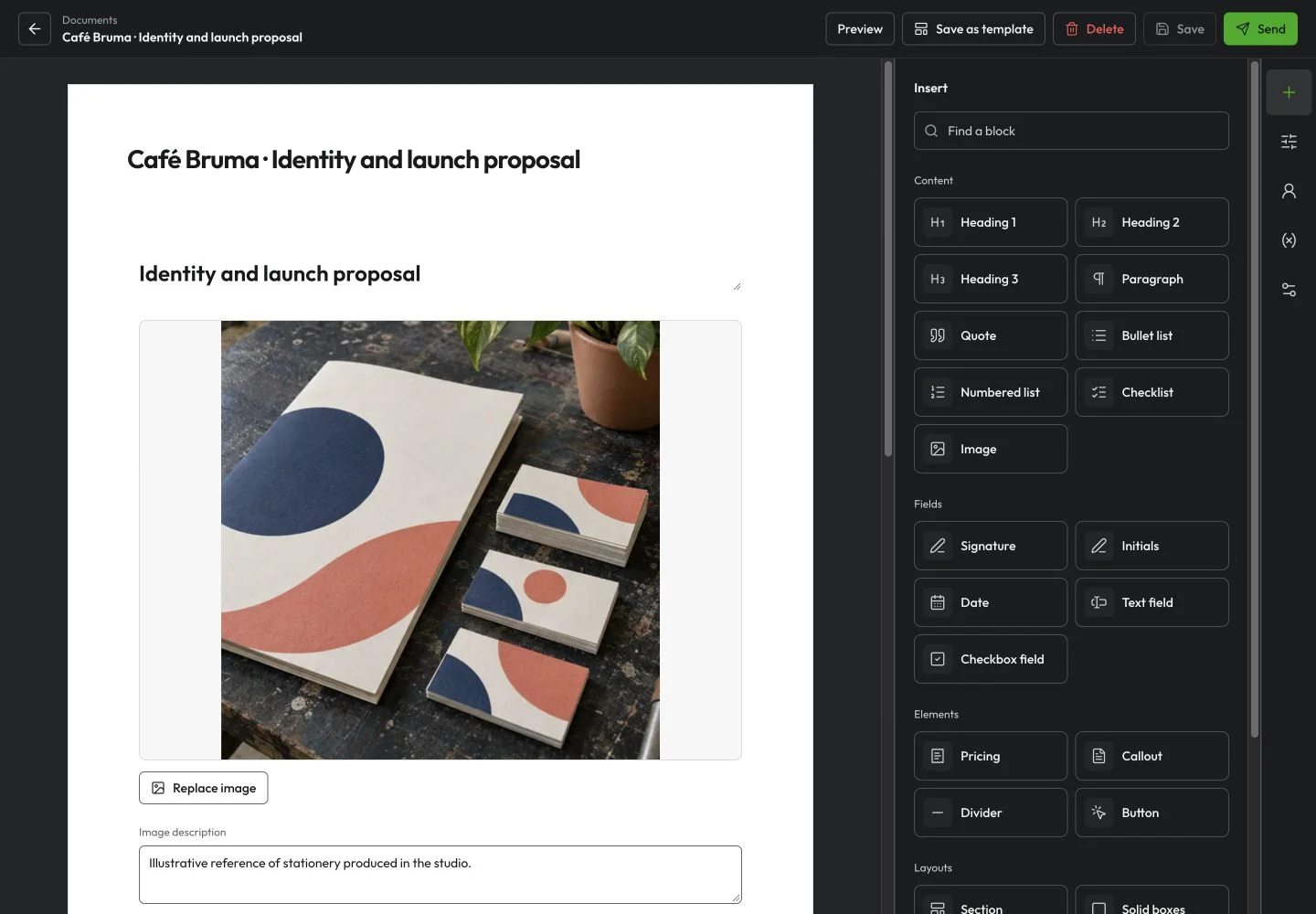
At a glance
What you can do
Text, tables, pricing, images, and response fields
Recipient and delivery status in one register
PDF copies or signature requests on paid plans
From the first step to the next
A clearer way to work.
Prepare
Start with the content you already have.
Begin with a blank page, a saved template, or an uploaded PDF. Arrange text, tables, pricing, and images, then choose page size and orientation. Add signature, initials, date, text, or checkbox fields when the recipient needs to complete the document.
- Blank page or imported PDF
- Structured content blocks
- Page size and orientation
- Recipient response fields

Reuse
Keep a useful structure close.
Save document content and settings as a reusable template. Search the document and template registers, duplicate a starting point, and choose a saved client or recipient email. Keep the title, recipient, and updated date easy to find before the next send.
- Reusable document templates
- Search and status filters
- Saved client or recipient email
- Duplicate a starting point
Send and follow up
Know how the document was delivered.
With paid Pro or PyME access and configured delivery, email a read-only PDF copy or send a link for review and electronic signing. PDF email copies do not collect fields or signatures. Follow draft, sent, viewed, and completed status in the document register, and review the delivery associated with the document.
- Read-only PDF email copies
- Review and signature links
- Document delivery status
- Completed document downloads

Common questions
The details to help you get started.
Which plans and roles can use Documents?
Documents is available on Pro and PyME web workspaces. Editing requires owner, admin, or manager access and the plan's active feature access. Sending a PDF copy or signature request requires paid Pro or PyME access and configured delivery.
Can I start with an existing PDF?
Yes. Upload a PDF as a document, then add response fields and recipients. If you save its added blocks and settings as a template, the original PDF remains with the document; it is not included in the saved template.
What is the difference between emailing a PDF and requesting a signature?
Emailing a PDF sends a read-only attachment and does not collect response fields or signatures. A signature request sends a secure document link for review and electronic signing. Choose the appropriate delivery mode before sending.
Where are documents and images stored?
Documents, source PDFs, delivery PDFs, and uploaded images use the workspace's shared Documents storage pool. Available storage follows the plan. Compare the current pricing table for limits.
Documents · Pro + PyME
Ready for the next job?
Keep the next step connected to the work that matters.
Start with Mantuno